
What is HTML? A Comprehensive Guide to HyperText Markup Language
Discover HTML - the foundational language of the web. Learn about its structure, role, and how HTML works in building modern websites. Perfect for beginners and experienced developers alike.
If you’re just starting your web development journey, you’ve undoubtedly heard the term HTML mentioned countless times. It’s the very first language every web developer needs to master, and for good reason. But what exactly is HTML, and why is it so fundamental to everything we see on the internet?
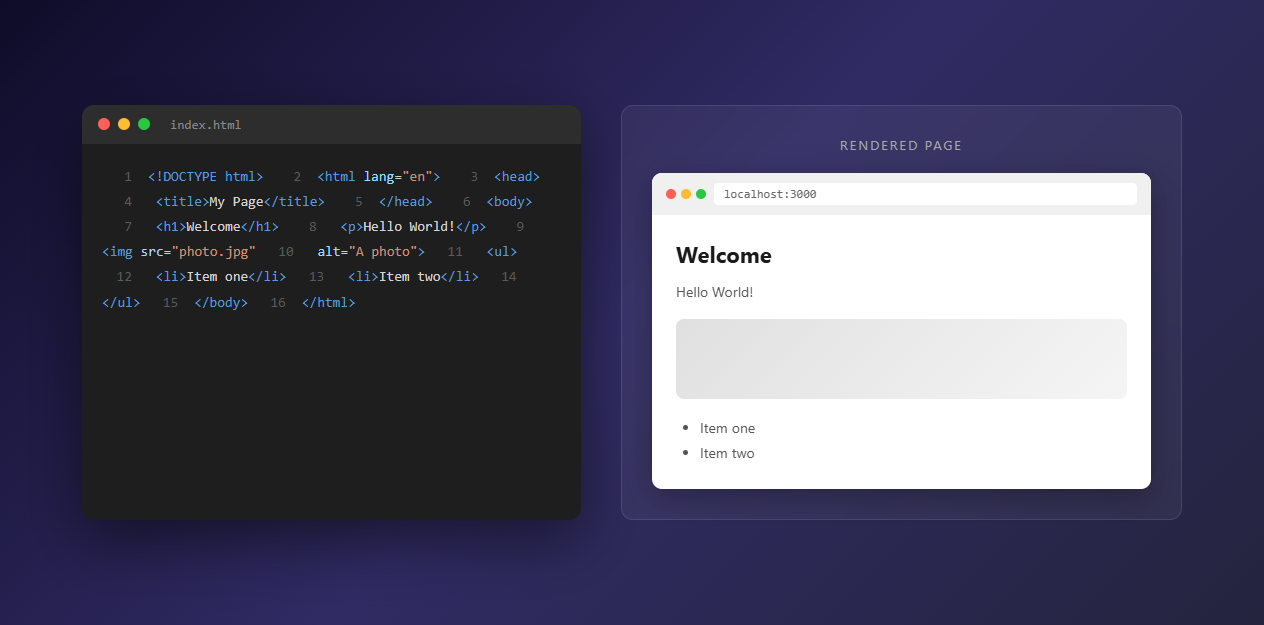
What is HTML?
HTML stands for HyperText Markup Language, and it’s the standard markup language used to create the structure and content of web pages. Unlike traditional programming languages like Python or JavaScript, HTML isn’t actually a programming language at all—it’s a markup language. This means it uses tags (markup elements) to define and organize different parts of a web page’s content.
The term “HyperText” in HTML refers to the ability to link web pages together through hyperlinks, creating the vast interconnected network of information we know today as the World Wide Web. Think of HTML as the skeleton of a website—it provides the structure, but you’ll need CSS for styling and JavaScript for interactivity.
HTML was invented by Tim Berners-Lee in 1991 while he was working at CERN (the European Organization for Nuclear Research). His original goal was simple: create an easy way for scientists to share research documents with each other. Little did he know that this simple markup language would become the foundation of the entire internet as we know it today.
Over the years, HTML has evolved significantly. We’ve seen versions like HTML 4.01, XHTML, and now HTML5, which introduced many new semantic elements and features that make web development more powerful and accessible than ever before.
How Does HTML Work?
HTML operates through a system of tags and attributes. Each HTML tag has a specific purpose and is understood by web browsers to display content appropriately. When you visit a website, here’s what happens behind the scenes:
The Basic Mechanism:
-
Browser Requests HTML: When you type a URL into your browser or click a link, your browser sends a request to the web server asking for the HTML file.
-
Server Sends HTML: The web server responds by sending the HTML file (along with CSS, JavaScript, and other resources) back to your browser.
-
Browser Parses HTML: Your browser reads the HTML file from top to bottom, parsing each tag to understand the structure and meaning of every element on the page.
-
DOM Tree Creation: The browser converts the HTML into a Document Object Model (DOM)—a tree-like structure that represents the page’s content. This DOM is what JavaScript interacts with to add dynamic behavior.
-
Rendering Content: Finally, the browser renders the content based on the HTML tags, applies CSS for styling, and executes JavaScript for interactive features. The result is what you see displayed on your screen.
This entire process happens in milliseconds, which is why modern websites load so quickly. Understanding this flow helps you write better HTML and debug issues more effectively.
Structure of an HTML Document
Every HTML document follows a standard structure. Here’s what a basic HTML document looks like:
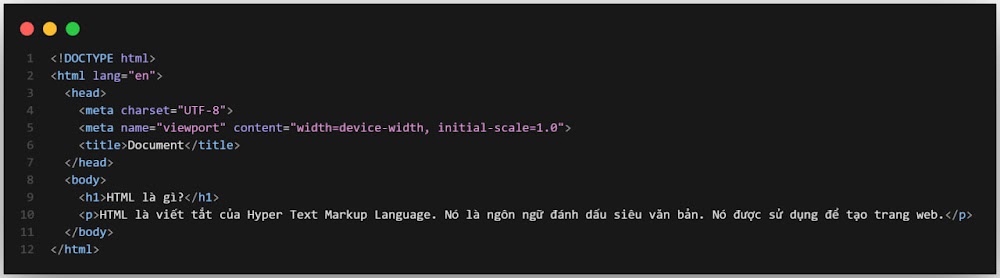
Key Components:
-
<!DOCTYPE html>: This declaration tells the browser that this is an HTML5 document. It must be the very first line in your HTML file. While older HTML versions had longer, more complex DOCTYPE declarations, HTML5 simplified this to just<!DOCTYPE html>. -
<html>: This is the root element that wraps all content on the page. Thelangattribute specifies the language of the page (e.g.,lang="en"for English), which helps screen readers and search engines understand your content better. -
<head>: This section contains metadata about your page—information that doesn’t display directly on the page but is crucial for browsers and search engines. It includes:- The page title (shown in browser tabs)
- Meta descriptions (for SEO)
- Links to CSS files
- Links to JavaScript files
- Character encoding information
- Viewport settings for responsive design
-
<body>: This contains all the visible content of your webpage—everything users actually see and interact with. This is where you’ll spend most of your time writing HTML.
Example of a Complete HTML Structure:
<!DOCTYPE html>
<html lang="en">
<head>
<meta charset="UTF-8">
<meta name="viewport" content="width=device-width, initial-scale=1.0">
<meta name="description" content="Learn about HTML and web development">
<title>My First Web Page</title>
<link rel="stylesheet" href="styles.css">
</head>
<body>
<header>
<h1>Welcome to My Website!</h1>
</header>
<nav>
<ul>
<li><a href="#introduction">Introduction</a></li>
<li><a href="#services">Services</a></li>
<li><a href="#contact">Contact</a></li>
</ul>
</nav>
<main>
<section id="introduction">
<h2>About HTML</h2>
<p>HTML is the foundation of every website.</p>
</section>
<section id="services">
<h2>Our Services</h2>
<p>We provide comprehensive web development solutions.</p>
</section>
</main>
<footer>
<p>© 2025 Company Name. All rights reserved.</p>
</footer>
</body>
</html>
Notice how semantic HTML5 elements like <header>, <nav>, <main>, <section>, and <footer> make the structure clear and meaningful. This semantic approach helps search engines understand your content and improves accessibility for users with screen readers.
Common HTML Tags
HTML provides hundreds of different tags, but they can be broadly categorized into two main types: Block-Level Tags and Inline Tags. Understanding this distinction is crucial for proper layout and styling.
Block-Level Tags
Block-level elements take up the full width of their parent container and always start on a new line. They’re typically used to create the overall structure and layout of your webpage. Think of them as building blocks that stack vertically.
Common Block-Level Tags:
-
<div>: A generic container used to group elements together. It’s the most versatile block-level element and is often used with CSS classes for styling. -
<h1>through<h6>: Heading elements that create a hierarchy of titles.<h1>is the most important (and typically largest), while<h6>is the least important. Use these to structure your content logically. -
<p>: Paragraph element for blocks of text. This is one of the most commonly used tags. -
<section>: Represents a standalone section of content. Use this to group related content together. -
<article>: Represents independent, self-contained content that could be distributed separately (like a blog post or news article). -
<header>: Contains introductory content or navigation links. Can be used for the page header or within sections. -
<footer>: Contains footer information like copyright notices, contact info, or related links. -
<nav>: Designates navigation menus. Use this to wrap your site’s main navigation links. -
<main>: Contains the main content of the page. There should only be one<main>element per page. -
<aside>: Contains supplementary content, often displayed as a sidebar. -
<ul>,<ol>,<li>: Create lists.<ul>is for unordered (bulleted) lists,<ol>is for ordered (numbered) lists, and<li>represents individual list items. -
<table>,<tr>,<td>,<th>: Create tables.<tr>is a table row,<td>is a table data cell, and<th>is a table header cell. -
<form>: Creates a form for user input. Essential for collecting data from users. -
<blockquote>: Used for longer quotations, typically indented from the main text.
Example:
<div class="container">
    <header>
        <h1>Page Title</h1>
        <nav>
            <ul>
                <li><a href="#home">Home</a></li>
                <li><a href="#about">About</a></li>
            </ul>
        </nav>
    </header>
    <main>
        <article>
            <h2>Article Title</h2>
            <p>Article content goes here...</p>
        </article>
    </main>
</div>
Inline Tags
Inline elements only take up as much space as necessary and don’t create new lines. They’re used to format or mark up portions of text within block-level elements. Think of them as ways to style or emphasize specific parts of your content.
Common Inline Tags:
-
<span>: A generic inline container, similar to<div>but for inline content. Often used with CSS classes for styling specific text portions. -
<a>: Creates hyperlinks (anchor tags). Thehrefattribute specifies the destination URL. -
<strong>: Indicates that text is of strong importance. Browsers typically render this as bold text, but the semantic meaning is more important than the visual styling. -
<em>: Indicates emphasized text. Typically rendered as italic, but again, the semantic meaning matters more. -
<img>: Embeds images. Requiressrc(image source) andalt(alternative text for accessibility) attributes. -
<code>: Displays inline code snippets. Useful for mentioning code elements within paragraphs. -
<br>: Creates a line break. Use sparingly—prefer block-level elements for structure. -
<input>: Creates input fields for forms. Can be text, email, password, checkbox, radio, etc., depending on thetypeattribute. -
<button>: Creates clickable buttons. Can be used in forms or for JavaScript interactions. -
<label>: Associates a label with a form control, improving accessibility and usability. -
<small>: Represents side comments or fine print. Typically renders smaller text. -
<mark>: Highlights text, like using a highlighter pen. Useful for drawing attention to specific portions. -
<time>: Represents a specific time or date. Thedatetimeattribute provides machine-readable format.
Example:
<p>
    This is a paragraph with <strong>important text</strong>,
    <em>emphasized text</em>, and a
    <a href="https://example.com">link</a>.
    Here's some <code>inline code</code> and a
    <mark>highlighted section</mark>.
</p>
Understanding the difference between block-level and inline elements is fundamental to CSS layout. Block elements can have width and height set, while inline elements flow with text and don’t respect width/height properties (unless you change their display property).
Advantages and Disadvantages of HTML
Like any technology, HTML has its strengths and limitations. Understanding both helps you make informed decisions about when and how to use HTML effectively.
Advantages of HTML
1. Easy to Learn and Use
HTML has an intuitive, straightforward syntax. Unlike complex programming languages, you can start writing HTML almost immediately. The learning curve is gentle, making it accessible to beginners. Many people create their first webpage within hours of learning HTML basics.
2. Universal Browser Support
HTML is supported by every modern web browser—Chrome, Firefox, Safari, Edge, Opera, and more. This universal support means your HTML will work consistently across different platforms and devices. While browsers may render some elements slightly differently, the core functionality remains the same.
3. Free and Open Standard
HTML is an open standard maintained by the World Wide Web Consortium (W3C) and the Web Hypertext Application Technology Working Group (WHATWG). You don’t need to pay licensing fees or purchase special software. All you need is a text editor and a web browser to get started.
4. Excellent SEO Support
When used correctly, semantic HTML helps search engines understand your content better. Proper use of heading tags (<h1> through <h6>), semantic elements like <article> and <section>, and meaningful alt text for images all contribute to better search engine rankings. Search engines can’t see your beautiful CSS—they rely on your HTML structure.
5. Easy Integration
HTML works seamlessly with CSS (for styling) and JavaScript (for interactivity). This trio forms the foundation of modern web development. You can also integrate HTML with server-side languages like PHP, Python, Node.js, Ruby, and many others.
6. Lightweight
HTML files are typically small and load quickly. Even complex HTML structures are relatively lightweight compared to other technologies, contributing to faster page load times and better user experience.
7. Accessible
When written correctly, HTML is inherently accessible. Screen readers can navigate semantic HTML effectively, and proper HTML structure helps users with disabilities access web content more easily.
Disadvantages of HTML
1. Not a Programming Language
HTML is static—it can’t perform calculations, make decisions, or handle dynamic data processing. For interactive features, dynamic content, or complex functionality, you need to combine HTML with JavaScript or server-side programming languages.
2. Requires CSS for Styling
HTML defines structure, not appearance. To create visually appealing websites, you must use CSS. Plain HTML without CSS looks very basic and unstyled. This means learning HTML is just the first step—you’ll need CSS knowledge to create professional-looking websites.
3. Standards Compliance Matters
Writing valid, standards-compliant HTML is important for:
- Consistent rendering across browsers
- Easier maintenance and debugging
- Better SEO performance
- Improved accessibility
- Future-proofing your code
However, browsers are forgiving and will often display invalid HTML, which can lead to inconsistent results and make debugging difficult.
4. Limited Functionality
HTML alone can’t:
- Process form data
- Connect to databases
- Authenticate users
- Perform server-side operations
- Handle file uploads securely
- Create complex interactive applications
These features require additional technologies like JavaScript, PHP, Python, or other server-side languages.
5. Browser Compatibility Issues
While HTML is widely supported, different browsers may interpret some HTML5 features differently, especially older browsers. You may need to use polyfills or fallbacks for certain features.
What Role Does HTML Play in Websites?
HTML serves as the skeleton of a website. Just as a skeleton provides structure for a body, HTML provides the structural framework for web content. Here’s what HTML specifically defines:
1. Content Structure
HTML helps you organize content logically and meaningfully. Semantic tags like <header>, <nav>, <main>, <article>, <section>, and <footer> help both browsers and search engines understand your page’s structure. This semantic approach makes your content more accessible and improves SEO.
2. Element Definition
HTML provides tags to define different types of content:
- Headings (
<h1>through<h6>): Create a content hierarchy - Paragraphs (
<p>): Structure text content - Lists (
<ul>,<ol>,<li>): Organize information - Tables (
<table>,<tr>,<td>): Display tabular data - Forms (
<form>,<input>,<button>): Collect user input - Media (
<img>,<video>,<audio>): Embed multimedia content - Links (
<a>): Connect pages and resources
3. Hyperlinking
HTML enables the creation of hyperlinks (<a> tags) between web pages, forming the interconnected network that is the World Wide Web. Without HTML’s linking capability, the web as we know it wouldn’t exist.
4. Integration Foundation
HTML provides the foundation for integrating CSS (for styling) and JavaScript (for interactivity). Without HTML structure, there’s no place to apply styles or add interactive features.
5. Accessibility
Proper HTML structure improves accessibility. Screen readers rely on semantic HTML to navigate and understand content. Proper heading hierarchy, alt text for images, and semantic elements all contribute to making the web more accessible to everyone.
How HTML, CSS, and JavaScript Work Together
HTML, CSS, and JavaScript are often called the three pillars of modern web development. Each technology plays a distinct but complementary role:
HTML - The Structure
HTML defines what content exists and how it’s organized. It answers the question: “What is on this webpage?”
Think of HTML as the foundation and framework of a house. It determines where rooms go, where doors are located, and the basic layout. But it doesn’t determine the color of the walls or whether the lights turn on automatically.
<article>
    <h1>Article Title</h1>
    <p>Article content goes here...</p>
    <button>Click Me</button>
</article>
CSS - The Presentation
CSS defines how content looks and how it’s styled. It answers the question: “What does this webpage look like?”
Continuing the house analogy, CSS is like the interior design—the paint colors, furniture placement, lighting, and decorative elements. It makes the structure beautiful and visually appealing.
article {
    background-color: #f5f5f5;
    padding: 20px;
    border-radius: 8px;
    max-width: 800px;
    margin: 0 auto;
}

h1 {
    color: #333;
    font-size: 2rem;
    margin-bottom: 1rem;
}

button {
    background-color: #007bff;
    color: white;
    padding: 10px 20px;
    border: none;
    border-radius: 5px;
    cursor: pointer;
}

button:hover {
    background-color: #0056b3;
}
JavaScript - The Behavior
JavaScript defines how the webpage behaves and what it can do. It answers the question: “What happens when users interact with this webpage?”
In our house analogy, JavaScript is like the electrical system and smart home features—the lights that turn on when you enter a room, the thermostat that adjusts automatically, the security system that responds to events.
document.querySelector('button').addEventListener('click', function() {
    const article = document.querySelector('article');
    article.style.backgroundColor = '#e0e0e0';
    alert('You clicked the button!');
});
The Perfect Combination
These three technologies work together seamlessly:
- HTML creates the structure and content
- CSS styles and formats that content
- JavaScript adds interactivity and dynamic behavior
Here’s a complete example showing all three working together:
<!DOCTYPE html>
<html lang="en">
<head>
    <meta charset="UTF-8">
    <meta name="viewport" content="width=device-width, initial-scale=1.0">
    <title>HTML, CSS, and JavaScript Together</title>
    <style>
        /* CSS - Styling */
        body {
            font-family: Arial, sans-serif;
            max-width: 600px;
            margin: 50px auto;
            padding: 20px;
        }

        button {
            background-color: #007bff;
            color: white;
            padding: 12px 24px;
            border: none;
            border-radius: 5px;
            font-size: 16px;
            cursor: pointer;
            transition: background-color 0.3s;
        }

        button:hover {
            background-color: #0056b3;
        }

        .highlight {
            background-color: yellow;
            padding: 2px 4px;
        }
    </style>
</head>
<body>
    <!-- HTML - Structure -->
    <h1>Hello, World!</h1>
    <p id="message">This is a demonstration of HTML, CSS, and JavaScript working together.</p>
    <button id="myButton">Click Me!</button>

    <script>
        // JavaScript - Behavior
        document.getElementById('myButton').addEventListener('click', function() {
            const message = document.getElementById('message');
            message.classList.add('highlight');
            message.textContent = 'You clicked the button! The page is now interactive.';

            setTimeout(function() {
                message.classList.remove('highlight');
                message.textContent = 'This is a demonstration of HTML, CSS, and JavaScript working together.';
            }, 3000);
        });
    </script>
</body>
</html>
This example demonstrates how:
- HTML provides the structure (the button and paragraph)
- CSS makes it look good (styling, colors, hover effects)
- JavaScript makes it interactive (click handler, dynamic content changes)
Understanding how these three technologies complement each other is essential for becoming a proficient web developer.
Software for HTML Development
You don’t need expensive or complex software to write HTML—a simple text editor is sufficient. However, using the right tools can significantly improve your productivity and make development more enjoyable.
Code Editors
1. Visual Studio Code (VS Code)
- Free and open-source - No cost, completely free
- Extensive extension marketplace - Thousands of extensions for HTML, CSS, JavaScript, and more
- IntelliSense - Smart code completion and suggestions
- Integrated debugging - Debug HTML/CSS/JavaScript directly in the editor
- Git integration - Built-in version control
- Live Server extension - Automatically reloads your page when you save changes
- Emmet support - Write HTML faster with abbreviations
- Available for Windows, macOS, and Linux
2. Sublime Text
- Lightweight and fast - Opens quickly, uses minimal resources
- Beautiful interface - Clean, distraction-free design
- Powerful search - Find and replace across multiple files easily
- Multiple cursors - Edit multiple lines simultaneously
- Package ecosystem - Extensive plugin library
- Cross-platform - Works on all major operating systems
- Paid software, but offers a free trial
3. Atom
- Free and open-source - Developed by GitHub
- Highly customizable - Themes and packages galore
- Built-in package manager - Easy plugin installation
- Git integration - See changes directly in the editor
- Teletype - Real-time collaborative editing
- Cross-platform - Available for all major OS
4. WebStorm
- Full-featured IDE - More than just a code editor
- Advanced debugging - Powerful debugging tools
- Framework support - Excellent support for React, Vue, Angular, etc.
- Refactoring tools - Smart code refactoring capabilities
- Integrated terminal - Run commands without leaving the editor
- Paid software - Professional IDE with subscription model
5. Notepad++ (Windows) / TextEdit (macOS)
- Basic text editors - Simple, no-frills editing
- Built into OS - Already installed on your computer
- Perfect for beginners - No learning curve
- Lightweight - Minimal resource usage
- Good for learning HTML basics, but limited compared to dedicated code editors
Browsers for Testing
Every web developer needs multiple browsers for testing:
- Google Chrome with DevTools - Excellent developer tools, most popular browser
- Mozilla Firefox with Developer Tools - Great for CSS Grid and Flexbox debugging
- Microsoft Edge - Good for testing Windows-specific features
- Safari (macOS/iOS) - Essential for testing Apple device compatibility
- Opera - Another option for cross-browser testing
Helpful Tools and Extensions
- Live Server (VS Code extension) - Automatically reloads your page when you save
- Prettier - Automatically formats your HTML code
- Emmet - Write HTML faster using abbreviations (e.g.,
div.container>h1+pexpands to full HTML) - Browser DevTools - Inspect HTML, debug CSS, test JavaScript
- HTML Validator - Check your HTML for errors and best practices
- Color Picker - Choose colors for your designs
- Responsive Design Mode - Test how your site looks on different screen sizes
Online Code Playgrounds
- CodePen - Write and share HTML/CSS/JS snippets
- JSFiddle - Similar to CodePen, great for quick experiments
- CodeSandbox - Full development environment in the browser
- Repl.it - Online coding environment with HTML support
These tools help you experiment, learn, and share your code without setting up a local development environment.
HTML Learning Resources
Whether you’re a complete beginner or looking to deepen your HTML knowledge, there are excellent resources available:
Official Documentation
-
MDN Web Docs (developer.mozilla.org): The most comprehensive and accurate HTML documentation available. Maintained by Mozilla, it’s considered the gold standard for web development documentation. Every HTML element, attribute, and concept is thoroughly explained with examples.
-
W3Schools (w3schools.com): Beginner-friendly HTML tutorials with interactive examples. Great for quick reference and learning the basics. While not as authoritative as MDN, it’s more accessible for beginners.
-
HTML Living Standard (html.spec.whatwg.org): The official technical specification for HTML. This is the definitive source for how HTML should work, though it’s quite technical and may be overwhelming for beginners.
Online Courses
-
freeCodeCamp: Free, comprehensive HTML/CSS/JavaScript curriculum. Includes hands-on projects and certifications. Completely free and self-paced.
-
Codecademy: Interactive HTML courses with immediate feedback. Paid subscription but offers free basic courses. Great for structured learning.
-
Coursera: University-level courses from institutions like Johns Hopkins and University of Michigan. Some courses are free to audit.
-
Udemy: Wide variety of HTML courses at various skill levels. Frequent sales make courses very affordable.
-
edX: Free courses from universities like MIT and Harvard. Can audit courses for free or pay for certificates.
Practice Platforms
-
CodePen: Write HTML/CSS/JS and see results instantly. Great for experimenting and learning from others’ code.
-
JSFiddle: Similar to CodePen, excellent for quick HTML experiments and sharing code snippets.
-
CodeSandbox: Full development environment in your browser. More powerful than CodePen for complex projects.
-
GitHub: Explore real-world HTML projects. See how professionals structure their code and learn best practices.
Communities
-
Stack Overflow: Ask questions and get answers from experienced developers. Search before asking—your question has likely been answered before.
-
Reddit r/webdev: Active community of web developers sharing resources, asking questions, and discussing trends.
-
Dev.to: Developer community with articles, discussions, and tutorials. Great for staying updated with web development trends.
-
Discord/Slack Communities: Many web development communities have Discord or Slack servers for real-time help and discussion.
Books
-
“HTML and CSS: Design and Build Websites” by Jon Duckett: Beautifully designed book perfect for visual learners.
-
“Learning Web Design” by Jennifer Robbins: Comprehensive guide covering HTML, CSS, and JavaScript fundamentals.
-
“HTML5: The Missing Manual” by Matthew MacDonald: In-depth guide to HTML5 features and best practices.
Remember, the best way to learn HTML is through practice. Read tutorials, but also build projects. Start small with simple pages, then gradually increase complexity. Don’t try to memorize every tag—focus on understanding concepts and knowing where to look up syntax when needed.
Writing Your First HTML Document
Let’s create your first HTML document step by step. This hands-on approach will help solidify your understanding:
Step 1: Create an HTML File
Open your code editor (VS Code, Sublime Text, or even Notepad) and create a new file. Save it as index.html. The .html extension tells your computer and browser that this is an HTML file.
Tip: Name your main page index.html because web servers automatically look for a file named “index” when someone visits your website’s root directory.
Step 2: Write Basic HTML Structure
Start with the fundamental HTML structure:
<!DOCTYPE html>
<html lang="en">
<head>
    <meta charset="UTF-8">
    <meta name="viewport" content="width=device-width, initial-scale=1.0">
    <meta name="description" content="My first HTML webpage">
    <title>My First Web Page</title>
</head>
<body>
    <!-- Your content goes here -->
</body>
</html>
Step 3: Add Content
Now let’s add some actual content to make it interesting:
<!DOCTYPE html>
<html lang="en">
<head>
<meta charset="UTF-8">
<meta name="viewport" content="width=device-width, initial-scale=1.0">
<meta name="description" content="My first HTML webpage - learning web development">
<title>My First Web Page</title>
</head>
<body>
<header>
<h1>Welcome to HTML!</h1>
<p>This is my first webpage created with HTML.</p>
</header>
<main>
<section>
<h2>Introduction</h2>
<p>HTML is simple and fun to learn!</p>
<p>With HTML, you can create structured content for the web.</p>
</section>
<section>
<h2>My Learning Goals</h2>
<ul>
<li>Master HTML fundamentals</li>
<li>Learn CSS for styling</li>
<li>Add JavaScript for interactivity</li>
<li>Build real-world projects</li>
</ul>
</section>
<section>
<h2>Useful Resources</h2>
<p>
Visit <a href="https://developer.mozilla.org" target="_blank">MDN Web Docs</a>
to learn more about HTML and web development.
</p>
<p>
Check out <a href="https://www.w3schools.com" target="_blank">W3Schools</a>
for beginner-friendly tutorials.
</p>
</section>
<section>
<h2>Contact Information</h2>
<p>Email: <a href="mailto:example@email.com">example@email.com</a></p>
<p>Follow me on <a href="https://twitter.com" target="_blank">Twitter</a></p>
</section>
</main>
<footer>
<p>© 2025 - My First Website</p>
<p>Built with HTML5</p>
</footer>
</body>
</html>
Step 4: Open in Browser
Save your file and open it in a web browser. You can do this by:
- Double-clicking the file (it should open in your default browser)
- Right-clicking the file and selecting “Open with” → your preferred browser
- Dragging the file into an open browser window
You should see your webpage displayed! It won’t be styled yet (that’s where CSS comes in), but you’ll see the structure and content.
Step 5: Experiment
Now try experimenting:
- Change the text content
- Add more headings (
<h3>,<h4>, etc.) - Add images using
<img src="image.jpg" alt="Description"> - Create more lists (try an ordered list with
<ol>) - Add more links
- Try different semantic elements like
<article>,<aside>, or<nav>
Next Steps
Once you’re comfortable with basic HTML:
-
Add CSS: Create a
style.cssfile and link it to your HTML. Start styling your page to make it visually appealing. -
Add JavaScript: Create a
script.jsfile and add some interactivity. Maybe a button that changes the page content or a simple form. -
Learn More HTML Tags: Explore tags we haven’t covered yet, like
<video>,<audio>,<canvas>,<svg>, and form elements. -
Build Projects: Create multiple pages and link them together. Build a personal portfolio, a blog, or a simple business website.
-
Study Real Websites: Use browser DevTools to inspect how real websites are structured. Right-click on any webpage and select “Inspect” to see the HTML.
-
Validate Your HTML: Use the W3C HTML Validator (validator.w3.org) to check your HTML for errors and best practices.
Remember, every expert was once a beginner. Don’t worry about making mistakes—that’s how you learn. The HTML community is friendly and helpful, so don’t hesitate to ask questions when you’re stuck.
HTML Tools and Utilities
To work efficiently with HTML, you can use these free online tools that run entirely in your browser—your code never leaves your device, ensuring privacy and security:
HTML Beautifier
Format and beautify your HTML code effortlessly. This tool converts minified or messy HTML into clean, properly formatted, and readable code. Extremely useful when you need to inspect or edit HTML code from external sources, or when you want to clean up your own code for better readability and maintenance.
Use cases:
- Cleaning up copied HTML code
- Formatting minified HTML files
- Making code more readable for team collaboration
- Preparing code for documentation or presentations
HTML Minifier
Compress and minify your HTML code to reduce file size. This tool removes unnecessary whitespace, comments, and redundant characters while preserving functionality. Ideal for production deployment when you want to optimize page load speed and reduce bandwidth usage.
Use cases:
- Optimizing websites for faster loading
- Reducing server bandwidth costs
- Preparing HTML for production environments
- Creating compact HTML files for email templates
HTML Entity Encoder/Decoder
Encode and decode HTML entities seamlessly. Convert special characters to HTML entities (like < for <) and vice versa. Essential for escaping HTML to prevent XSS attacks, handling special characters in URLs, and processing text that needs to be safely embedded in HTML.
Use cases:
- Preventing XSS (Cross-Site Scripting) attacks
- Safely displaying user-generated content
- Encoding special characters in URLs
- Processing text for HTML embedding
HTML Tag Remover
Remove HTML tags and extract plain text content. This tool strips all HTML tags, scripts, and styles while optionally preserving or removing line breaks. Perfect for extracting clean text content from HTML documents, cleaning up copied content, or preparing text for plain text formats.
Use cases:
- Extracting text content from HTML emails
- Cleaning copied content from websites
- Preparing content for plain text formats
- Removing formatting for text analysis
All these tools operate completely in your browser—your code never leaves your device, ensuring complete privacy and security. They’re perfect for quick HTML manipulation tasks without needing to install additional software or send your code to external servers.
Conclusion
HTML is the indispensable foundation of web development. Whether you aspire to become a frontend developer, backend developer, or full-stack developer, mastering HTML is not optional—it’s essential. Every website, web application, and web-based service relies on HTML at its core.
Starting with HTML isn’t difficult, but becoming proficient and writing high-quality, semantic HTML requires practice and a deep understanding of best practices. Begin with the fundamentals we’ve covered here, practice regularly by building projects, and gradually expand your knowledge.
Remember that HTML is just the beginning of your web development journey. Once you’re comfortable with HTML, you’ll naturally want to learn CSS to make your pages beautiful and JavaScript to make them interactive. These three technologies work together to create the modern web experiences we all enjoy.
The web development community is vast, supportive, and always learning. Don’t hesitate to explore, experiment, ask questions, and build projects. Every website you visit is a learning opportunity—use browser DevTools to see how professionals structure their HTML.
If you’re looking for HTML tools to support your development workflow, explore all our free HTML tools to enhance your web development process. These tools can help you work more efficiently, write better code, and debug issues faster.
Happy coding, and welcome to the world of web development!