
CSS Flexbox Complete Guide - Master Modern Layouts
Learn CSS Flexbox from scratch. Discover how to create flexible, responsive layouts with Flexbox. Master alignment, spacing, and modern CSS layout techniques. Perfect for web developers of all levels.
Remember the days when centering a div vertically was a challenge that required CSS hacks, negative margins, or JavaScript? Or when creating a navigation bar with evenly spaced items meant wrestling with floats and clearfixes? Those days are long gone, thanks to CSS Flexbox.
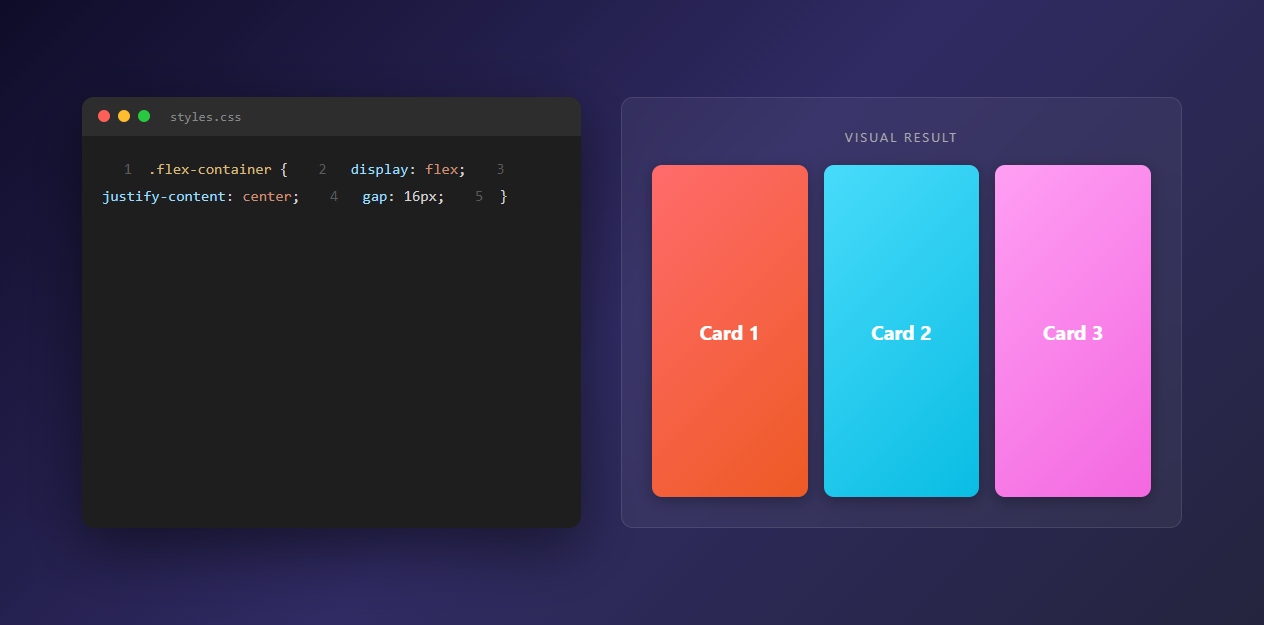
Flexbox (short for Flexible Box Layout) revolutionized how we create layouts in CSS. It’s a powerful, intuitive way to arrange items in rows or columns, align them perfectly, and distribute space evenly—all without the headaches of older layout methods.
Whether you’re a beginner struggling with CSS layouts or an experienced developer looking to master modern techniques, Flexbox is an essential skill that will make your life easier and your code cleaner.
What is Flexbox?
CSS Flexbox is a one-dimensional layout method designed to help you arrange items in rows or columns. The “flexible” part means items can grow, shrink, and adjust their size to fill available space intelligently.
Flexbox was designed to solve common layout problems:
- Centering content (both horizontally and vertically)
- Creating equal-height columns
- Distributing space evenly between items
- Aligning items in complex ways
- Building responsive navigation bars
- Creating flexible card layouts
Before Flexbox, these tasks often required:
- Float hacks and clearfixes
- Negative margins
- JavaScript calculations
- Table-based layouts
- Absolute positioning tricks
Flexbox makes all of this much simpler and more intuitive.
How Flexbox Works
Flexbox works with a container (the parent element) and items (the child elements). You apply display: flex to the container, and the children automatically become “flex items.”
Basic Example
<div class="container">
  <div class="item">Item 1</div>
  <div class="item">Item 2</div>
  <div class="item">Item 3</div>
</div>
.container {
  display: flex;
}
That’s it! The three items are now arranged in a row by default. No floats, no positioning—just simple, clean CSS.
Understanding Flexbox Axes
Flexbox operates on two axes, which is crucial to understand:
Main Axis
The main axis is the primary direction items flow. By default, this is horizontal (left to right).
Cross Axis
The cross axis is perpendicular to the main axis. By default, this is vertical (top to bottom).
You can change the direction, which swaps the axes:
.container {
  display: flex;
  flex-direction: column; /* Main axis becomes vertical */
}
Container Properties
These properties are applied to the flex container (the parent):
display: flex
This is how you create a flex container:
.container {
  display: flex;
}
Or for inline flex:
.container {
  display: inline-flex;
}
flex-direction
Controls the direction of the main axis:
.container {
  flex-direction: row;        /* Default: left to right */
  flex-direction: row-reverse;  /* Right to left */
  flex-direction: column;      /* Top to bottom */
  flex-direction: column-reverse; /* Bottom to top */
}
flex-wrap
Controls whether items wrap to new lines:
.container {
  flex-wrap: nowrap;    /* Default: all items on one line */
  flex-wrap: wrap;      /* Items wrap to new lines */
  flex-wrap: wrap-reverse; /* Wrap in reverse order */
}
flex-flow (Shorthand)
Combines flex-direction and flex-wrap:
.container {
  flex-flow: row wrap; /* direction and wrap */
}
justify-content
Aligns items along the main axis:
.container {
  justify-content: flex-start;    /* Default: start of main axis */
  justify-content: flex-end;       /* End of main axis */
  justify-content: center;         /* Center along main axis */
  justify-content: space-between;  /* Space between items */
  justify-content: space-around;   /* Space around items */
  justify-content: space-evenly;   /* Equal space everywhere */
}
Visual Examples:
flex-start:     [Item][Item][Item]-------
flex-end:       -------[Item][Item][Item]
center:         ---[Item][Item][Item]---
space-between:  [Item]----[Item]----[Item]
space-around:   -[Item]--[Item]--[Item]-
space-evenly:   --[Item]--[Item]--[Item]--
align-items
Aligns items along the cross axis:
.container {
  align-items: stretch;     /* Default: fill cross axis */
  align-items: flex-start;  /* Start of cross axis */
  align-items: flex-end;    /* End of cross axis */
  align-items: center;      /* Center along cross axis */
  align-items: baseline;    /* Align to text baseline */
}
align-content
Controls how multiple lines are spaced along the cross axis (only works with flex-wrap: wrap):
.container {
  flex-wrap: wrap;
  align-content: flex-start;
  align-content: flex-end;
  align-content: center;
  align-content: space-between;
  align-content: space-around;
  align-content: stretch; /* Default */
}
gap
Adds space between flex items (modern browsers):
.container {
  gap: 20px;        /* Space between all items */
  gap: 10px 20px;  /* Row gap, column gap */
}
Item Properties
These properties are applied to flex items (the children):
flex-grow
Controls how much an item should grow relative to others:
.item {
  flex-grow: 0;    /* Default: don't grow */
  flex-grow: 1;    /* Grow to fill space */
  flex-grow: 2;    /* Grow twice as much as flex-grow: 1 */
}
Example:
.item-1 { flex-grow: 1; }  /* Takes 1 part */
.item-2 { flex-grow: 2; }  /* Takes 2 parts */
.item-3 { flex-grow: 1; }  /* Takes 1 part */
/* Total: 4 parts. Item 2 gets 50%, items 1 and 3 get 25% each */
flex-shrink
Controls how much an item should shrink relative to others:
.item {
  flex-shrink: 1;  /* Default: can shrink */
  flex-shrink: 0;  /* Don't shrink */
  flex-shrink: 2;  /* Shrink twice as much */
}
flex-basis
Sets the initial size of an item before growing/shrinking:
.item {
  flex-basis: auto;  /* Default: use width/height */
  flex-basis: 200px; /* Start at 200px */
  flex-basis: 25%;   /* Start at 25% of container */
}
flex (Shorthand)
Combines flex-grow, flex-shrink, and flex-basis:
.item {
  flex: 1;           /* flex: 1 1 0% (grow, shrink, basis) */
  flex: 0 1 auto;    /* Don't grow, can shrink, auto basis */
  flex: 1 0 200px;   /* Grow, don't shrink, start at 200px */
}
Common patterns:
flex: 1;        /* Flexible item that grows and shrinks */
flex: 0 0 200px; /* Fixed size, no grow or shrink */
flex: none;     /* flex: 0 0 auto (no flexibility) */
align-self
Overrides align-items for a specific item:
.item {
  align-self: auto;      /* Default: use container's align-items */
  align-self: flex-start;
  align-self: flex-end;
  align-self: center;
  align-self: stretch;
}
order
Changes the visual order of items (doesn’t affect HTML):
.item-1 { order: 3; }  /* Appears third */
.item-2 { order: 1; }  /* Appears first */
.item-3 { order: 2; }  /* Appears second */
Default order is 0. Items with the same order appear in HTML order.
Common Flexbox Patterns
1. Centering Content
The classic “center a div” problem, solved easily:
.container {
  display: flex;
  justify-content: center;  /* Horizontal center */
  align-items: center;      /* Vertical center */
  height: 100vh;           /* Full viewport height */
}
2. Navigation Bar
Create a responsive navigation:
.nav {
  display: flex;
  justify-content: space-between;
  align-items: center;
  padding: 1rem;
}

.nav-links {
  display: flex;
  gap: 2rem;
  list-style: none;
}
3. Equal Height Columns
Items automatically match the tallest item’s height:
.card-container {
  display: flex;
  gap: 20px;
}

.card {
  flex: 1;  /* Equal width, equal height */
}
4. Sticky Footer
Footer stays at bottom, content fills space:
body {
  display: flex;
  flex-direction: column;
  min-height: 100vh;
}

main {
  flex: 1;  /* Takes remaining space */
}
5. Responsive Card Layout
Cards that wrap and resize:
.card-grid {
  display: flex;
  flex-wrap: wrap;
  gap: 20px;
}

.card {
  flex: 1 1 300px;  /* Grow, shrink, min 300px */
  max-width: 100%;
}
6. Space Distribution
Evenly distribute space:
.container {
  display: flex;
  justify-content: space-between;  /* Or space-around, space-evenly */
}
7. Vertical Centering in Cards
Center content vertically within cards:
.card {
  display: flex;
  flex-direction: column;
  justify-content: center;
}
Real-World Examples
Example 1: Modern Navigation Bar
<nav class="navbar">
  <div class="logo">MySite</div>
  <ul class="nav-menu">
    <li><a href="#">Home</a></li>
    <li><a href="#">About</a></li>
    <li><a href="#">Services</a></li>
    <li><a href="#">Contact</a></li>
  </ul>
  <button class="cta-button">Sign Up</button>
</nav>
.navbar {
  display: flex;
  justify-content: space-between;
  align-items: center;
  padding: 1rem 2rem;
  background: #fff;
  box-shadow: 0 2px 4px rgba(0,0,0,0.1);
}

.nav-menu {
  display: flex;
  gap: 2rem;
  list-style: none;
  margin: 0;
  padding: 0;
}

.cta-button {
  padding: 0.5rem 1.5rem;
  background: #007bff;
  color: white;
  border: none;
  border-radius: 4px;
}
Example 2: Card Grid Layout
<div class="card-grid">
  <div class="card">
    <h3>Card Title</h3>
    <p>Card content goes here...</p>
    <button>Learn More</button>
  </div>
  <!-- More cards -->
</div>
.card-grid {
  display: flex;
  flex-wrap: wrap;
  gap: 2rem;
  padding: 2rem;
}

.card {
  flex: 1 1 300px;
  display: flex;
  flex-direction: column;
  padding: 1.5rem;
  background: white;
  border-radius: 8px;
  box-shadow: 0 2px 8px rgba(0,0,0,0.1);
}

.card button {
  margin-top: auto;  /* Pushes button to bottom */
  align-self: flex-start;
}
Example 3: Form Layout
<form class="form-container">
  <div class="form-row">
    <label>First Name</label>
    <input type="text">
  </div>
  <div class="form-row">
    <label>Last Name</label>
    <input type="text">
  </div>
  <button type="submit">Submit</button>
</form>
.form-container {
  display: flex;
  flex-direction: column;
  gap: 1rem;
  max-width: 500px;
}

.form-row {
  display: flex;
  flex-direction: column;
  gap: 0.5rem;
}

@media (min-width: 768px) {
  .form-row {
    flex-direction: row;
    align-items: center;
  }

  .form-row label {
    flex: 0 0 150px;  /* Fixed width labels */
  }

  .form-row input {
    flex: 1;  /* Inputs take remaining space */
  }
}
Flexbox vs. Other Layout Methods
Flexbox vs. Floats
Floats (Old Way):
.item {
  float: left;
  width: 33.33%;
}
.clearfix::after {
  content: "";
  display: table;
  clear: both;
}
Flexbox (Modern Way):
.container {
  display: flex;
}
.item {
  flex: 1;
}
Flexbox is cleaner, more predictable, and doesn’t require clearfixes.
Flexbox vs. CSS Grid
Use Flexbox when:
- You need a one-dimensional layout (row OR column)
- Aligning items is the main concern
- Building components or smaller sections
- You need content-based sizing
Use Grid when:
- You need a two-dimensional layout (rows AND columns)
- Building overall page layouts
- You need precise control over both dimensions
- Creating complex grid-based designs
Use Both: Many layouts use Grid for the overall structure and Flexbox for individual components.
Browser Support and Fallbacks
Flexbox has excellent support in all modern browsers. For older browsers:
Autoprefixer
Use a tool like Autoprefixer to add vendor prefixes automatically:
/* You write: */
.container {
  display: flex;
}

/* Autoprefixer outputs: */
.container {
  display: -webkit-box;
  display: -ms-flexbox;
  display: flex;
}
Feature Queries
Provide fallbacks for older browsers:
/* Fallback for older browsers */
.container {
  display: block;
}

/* Modern browsers */
@supports (display: flex) {
  .container {
    display: flex;
  }
}
Common Flexbox Mistakes
1. Forgetting flex-wrap
Items overflow container when you forget to wrap:
/* Bad */
.container {
  display: flex;
  /* Items overflow */
}

/* Good */
.container {
  display: flex;
  flex-wrap: wrap;
}
2. Using width instead of flex-basis
/* Less flexible */
.item {
  width: 33.33%;
}

/* Better */
.item {
  flex: 1 1 33.33%;
}
3. Not understanding flex shorthand
/* Confusing */
.item {
  flex-grow: 1;
  flex-shrink: 1;
  flex-basis: 0;
}

/* Clearer */
.item {
  flex: 1;
}
4. Overusing flex: 1
Not every item needs to grow:
/* Unnecessary */
.button {
  flex: 1;
}

/* Better */
.button {
  /* Natural size, or specific width */
}
Best Practices
1. Start Simple
Begin with basic flex properties, add complexity as needed.
2. Use Gap Instead of Margins
/* Old way */
.item {
  margin-right: 20px;
}
.item:last-child {
  margin-right: 0;
}

/* Modern way */
.container {
  gap: 20px;
}
3. Combine with Other CSS
Flexbox works great with:
- CSS Grid (for page layouts)
- Media queries (for responsiveness)
- CSS variables (for theming)
4. Use Semantic HTML
Flexbox is for layout, not structure. Keep your HTML semantic.
5. Test on Different Screen Sizes
Flexbox makes responsive design easier, but still test thoroughly.
Flexbox Resources
Practice Tools
- Flexbox Froggy: flexboxfroggy.com - Interactive game to learn Flexbox
- Flexbox Defense: flexboxdefense.com - Tower defense game using Flexbox
- CSS-Tricks Flexbox Guide: Comprehensive visual guide
Documentation
- MDN Flexbox: developer.mozilla.org/en-US/docs/Web/CSS/CSS_Flexible_Box_Layout
- Can I Use: Check browser support
Conclusion
CSS Flexbox is one of the most important layout tools in modern web development. It solves problems that used to require complex hacks and workarounds, making layouts more intuitive and maintainable.
The key to mastering Flexbox is understanding the two axes (main and cross) and how container and item properties work together. Once you grasp these concepts, the rest follows naturally.
Start practicing with simple examples—centering content, creating navigation bars, building card layouts. As you become comfortable, you’ll find yourself reaching for Flexbox automatically whenever you need to align or distribute items.
Remember, Flexbox is one-dimensional. For two-dimensional layouts, you’ll want to learn CSS Grid. But for most component-level layouts, Flexbox is perfect.
The best way to learn is by doing. Create projects, experiment, break things, and fix them. Before you know it, Flexbox will feel as natural as writing regular CSS.
Happy coding, and enjoy the power of flexible layouts!