
HTML Forms Complete Guide - Everything You Need to Know About Building Forms
Master HTML forms from basics to advanced. Learn form elements, input types, validation, accessibility, and best practices. Complete guide with examples for creating user-friendly forms that work perfectly.
Forms are everywhere on the web. Every time you log in, sign up, search, or make a purchase, you’re interacting with an HTML form. They’re one of the most important ways websites communicate with users, yet many developers find them confusing or don’t use them to their full potential.
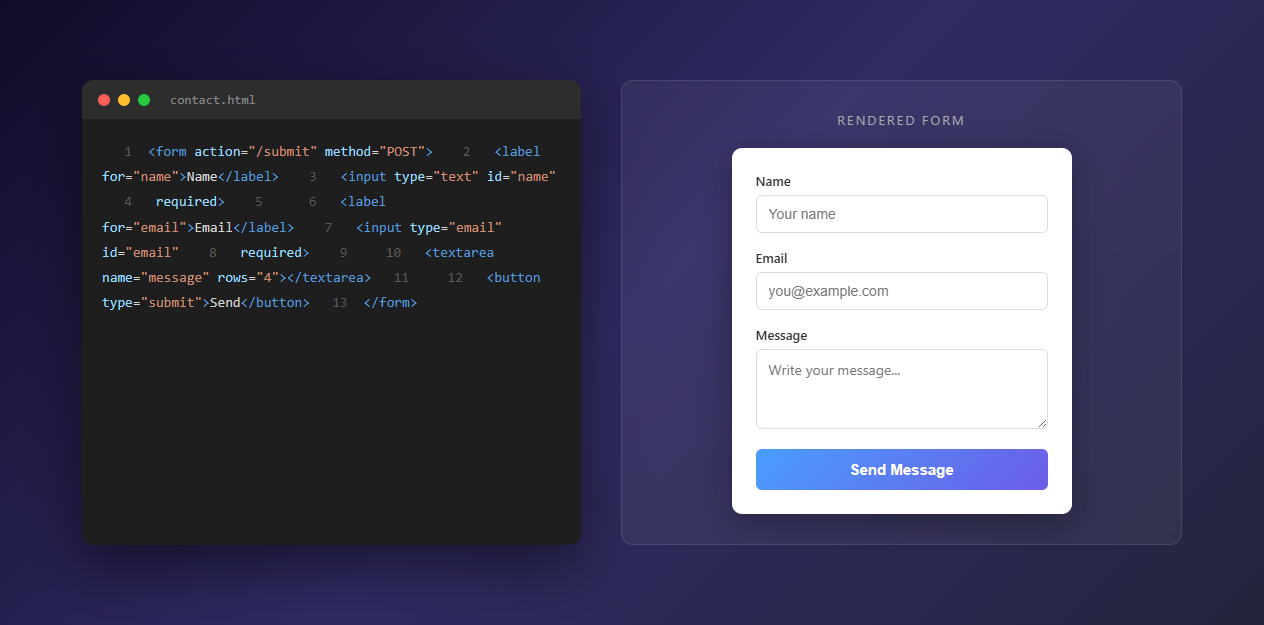
If you’ve ever struggled with getting forms to work properly, making them look good, or ensuring they’re accessible, you’re in the right place. This guide will take you from form basics to advanced techniques, with real examples you can use in your projects.
By the end of this article, you’ll understand forms inside and out - how they work, how to style them, how to validate them, and how to make them accessible to everyone. Let’s dive in!
Why Forms Matter
Before we get into the technical details, let’s talk about why forms are so important. Forms are the bridge between your users and your website’s functionality. A well-designed form:
- Collects information efficiently - Users can provide data quickly and easily
- Prevents errors - Good validation catches mistakes before submission
- Improves user experience - Clear, intuitive forms make users happy
- Protects your site - Proper validation prevents malicious input
A poorly designed form, on the other hand, frustrates users, collects bad data, and can even create security vulnerabilities. That’s why understanding forms thoroughly is crucial.
The Basic Form Structure
Every HTML form starts with the <form> element. Think of it as a container that holds all your form fields and tells the browser what to do when the form is submitted.
Here’s the simplest possible form:
<form>
    <input type="text" name="username">
    <button type="submit">Submit</button>
</form>
That’s it! But let’s make it actually useful. A proper form needs:
<form action="/submit" method="POST">
    <label for="username">Username:</label>
    <input type="text" id="username" name="username" required>

    <button type="submit">Submit</button>
</form>
Let’s break down what each part does:
<form>- The container elementaction- Where to send the form data (URL)method- How to send it (GET or POST)<label>- Describes what the input is forfor- Links the label to the input (accessibility!)<input>- The actual input fieldtype- What kind of input (text, email, password, etc.)id- Unique identifier (links to label)name- Name sent with form datarequired- Makes the field mandatory<button>- Submits the form
Understanding Input Types
HTML5 gave us many input types that make forms smarter and more user-friendly. Let’s explore the most useful ones:
Text Inputs
Text - The basic text field:
<input type="text" name="name" placeholder="Enter your name">
Email - Automatically validates email format:
<input type="email" name="email" placeholder="your@email.com">
Browsers check if it’s a valid email format. On mobile, shows email keyboard.
Password - Hides what you type:
<input type="password" name="password" placeholder="Enter password">
Characters appear as dots or asterisks.
Search - For search boxes:
<input type="search" name="query" placeholder="Search...">
Some browsers add a clear button automatically.
Tel - Phone numbers:
<input type="tel" name="phone" placeholder="123-456-7890">
On mobile, shows numeric keypad.
URL - Web addresses:
<input type="url" name="website" placeholder="https://example.com">
Validates URL format.
Number and Range Inputs
Number - Numeric input:
<input type="number" name="age" min="18" max="100" step="1">
Shows spinner arrows, validates number range.
Range - Slider:
<input type="range" name="volume" min="0" max="100" value="50">
Visual slider for selecting values.
Date and Time Inputs
Date - Date picker:
<input type="date" name="birthday">
Shows a calendar picker (browser-dependent).
Time - Time picker:
<input type="time" name="appointment">
Datetime-local - Date and time:
<input type="datetime-local" name="event">
Selection Inputs
Checkbox - Multiple selections:
<input type="checkbox" id="newsletter" name="newsletter" value="yes">
<label for="newsletter">Subscribe to newsletter</label>
Radio - Single selection from options:
<input type="radio" id="male" name="gender" value="male">
<label for="male">Male</label>

<input type="radio" id="female" name="gender" value="female">
<label for="female">Female</label>
Radio buttons with the same name are grouped together.
Select - Dropdown menu:
<select name="country">
    <option value="">Choose a country</option>
    <option value="us">United States</option>
    <option value="uk">United Kingdom</option>
    <option value="ca">Canada</option>
</select>
File and Other Inputs
File - File upload:
<input type="file" name="document" accept=".pdf,.doc,.docx">
accept limits file types.
Hidden - Invisible field:
<input type="hidden" name="token" value="abc123">
Useful for passing data without showing it.
Color - Color picker:
<input type="color" name="favcolor" value="#ff0000">
The Textarea Element
For longer text input, use <textarea>:
<label for="message">Message:</label>
<textarea id="message" name="message" rows="4" cols="50" placeholder="Enter your message here..."></textarea>
rows- Height in linescols- Width in characters- Better to control size with CSS though
Form Attributes You Should Know
Forms have several attributes that control their behavior:
Action and Method
Action - Where to send the data:
<form action="/api/submit" method="POST">
If no action, form submits to current page.
Method - How to send:
-
GET - Data in URL (visible, limited length)
- Good for: Searches, filters, bookmarkable forms
- Example:
?search=query&page=2
-
POST - Data in request body (not visible, unlimited)
- Good for: Logins, registrations, sensitive data
- More secure for passwords and personal info
Other Useful Attributes
Autocomplete - Helps browsers fill forms:
<form autocomplete="on">
<input type="email" name="email" autocomplete="email">
Novalidate - Skip HTML5 validation:
<form novalidate>
Useful if you’re doing custom JavaScript validation.
Target - Where to open response:
<form target="_blank">
Opens in new tab/window.
Labels - Your Form’s Best Friend
Labels are crucial for accessibility and usability. Always use them!
Two Ways to Use Labels
Method 1: Wrapping
<label>
    Username:
    <input type="text" name="username">
</label>
Method 2: Using ‘for’ (Recommended)
<label for="username">Username:</label>
<input type="text" id="username" name="username">
Why Method 2 is better:
- More flexible styling
- Can separate label and input
- Clearer relationship
- Better for screen readers
Label Best Practices
- Always include labels (even if hidden visually)
- Be descriptive: “Email address” not just “Email”
- Place labels above or to the left of inputs
- Use
forattribute matching inputid
Fieldsets and Legends - Grouping Related Fields
When you have multiple related fields, group them:
<fieldset>
    <legend>Shipping Address</legend>

    <label for="street">Street:</label>
    <input type="text" id="street" name="street">

    <label for="city">City:</label>
    <input type="text" id="city" name="city">
</fieldset>

<fieldset>
    <legend>Billing Address</legend>
    <!-- Billing fields -->
</fieldset>
This helps users understand which fields belong together. Plus, it looks organized!
Form Validation - Catching Errors Early
Validation ensures users enter correct data. HTML5 gives us built-in validation - use it!
HTML5 Validation Attributes
Required - Field must be filled:
<input type="text" name="name" required>
Pattern - Custom validation with regex:
<input type="text" name="phone" pattern="[0-9]{3}-[0-9]{3}-[0-9]{4}"
       placeholder="123-456-7890">
Min/Max - For numbers and dates:
<input type="number" name="age" min="18" max="120">
<input type="date" name="birthday" max="2024-12-31">
Minlength/Maxlength - Text length:
<input type="text" name="username" minlength="3" maxlength="20">
Custom Validation Messages
You can customize error messages:
<input type="email" name="email" required
       oninvalid="this.setCustomValidity('Please enter a valid email address')"
       oninput="this.setCustomValidity('')">
Styling Valid/Invalid States
CSS can style validation states:
input:valid {
    border-color: green;
}

input:invalid {
    border-color: red;
}

input:focus:invalid {
    outline: 2px solid red;
}
JavaScript Validation
For more control, use JavaScript:
const form = document.querySelector('form');

form.addEventListener('submit', function(e) {
    e.preventDefault(); // Prevent default submission

    const email = document.getElementById('email').value;

    if (!email.includes('@')) {
        alert('Please enter a valid email');
        return false;
    }

    // If validation passes, submit
    form.submit();
});
Important: Always validate on the server too! Client-side validation improves UX but isn’t secure.
Styling Forms - Making Them Look Good
Forms don’t have to be ugly! Here’s how to style them:
Basic Form Styling
form {
    max-width: 600px;
    margin: 0 auto;
    padding: 2rem;
}

label {
    display: block;
    margin-bottom: 0.5rem;
    font-weight: 500;
    color: #333;
}

input[type="text"],
input[type="email"],
input[type="password"],
textarea,
select {
    width: 100%;
    padding: 0.75rem;
    border: 2px solid #ddd;
    border-radius: 4px;
    font-size: 1rem;
    font-family: inherit;
}

input:focus,
textarea:focus,
select:focus {
    outline: none;
    border-color: #4a90e2;
    box-shadow: 0 0 0 3px rgba(74, 144, 226, 0.1);
}
Button Styling
button[type="submit"] {
    background-color: #4a90e2;
    color: white;
    padding: 0.75rem 2rem;
    border: none;
    border-radius: 4px;
    font-size: 1rem;
    cursor: pointer;
    transition: background-color 0.3s;
}

button[type="submit"]:hover {
    background-color: #357abd;
}

button[type="submit"]:active {
    transform: scale(0.98);
}
Error Message Styling
.error-message {
    color: #d32f2f;
    font-size: 0.875rem;
    margin-top: 0.25rem;
    display: none;
}

input:invalid + .error-message {
    display: block;
}
Accessibility - Making Forms Usable for Everyone
Accessible forms work for everyone, including people using screen readers, keyboard navigation, or other assistive technologies.
Accessibility Checklist
✅ Use proper labels
<label for="email">Email:</label>
<input type="email" id="email" name="email">
✅ Associate error messages
<input type="email" id="email" name="email" aria-describedby="email-error">
<span id="email-error" role="alert">Please enter a valid email</span>
✅ Use semantic HTML
<fieldset>for groups<legend>for group titles- Proper heading structure
✅ Ensure keyboard navigation
- Tab through fields in logical order
- Enter submits forms
- Escape cancels (if implemented)
✅ Provide helpful placeholders
<input type="tel" placeholder="Format: 123-456-7890">
✅ Use ARIA when needed
<input type="text" aria-required="true" aria-invalid="true">
Testing Accessibility
- Test with keyboard only (no mouse)
- Use a screen reader (built into most OS)
- Check color contrast
- Validate with accessibility tools
A Complete Form Example
Let’s put it all together with a real-world example:
<!DOCTYPE html>
<html lang="en">
<head>
    <meta charset="UTF-8">
    <meta name="viewport" content="width=device-width, initial-scale=1.0">
    <title>Contact Form</title>
    <style>
        * {
            margin: 0;
            padding: 0;
            box-sizing: border-box;
        }

        body {
            font-family: -apple-system, BlinkMacSystemFont, 'Segoe UI', sans-serif;
            line-height: 1.6;
            color: #333;
            background-color: #f5f5f5;
            padding: 2rem;
        }

        .container {
            max-width: 600px;
            margin: 0 auto;
            background: white;
            padding: 2rem;
            border-radius: 8px;
            box-shadow: 0 2px 10px rgba(0,0,0,0.1);
        }

        h1 {
            margin-bottom: 1.5rem;
            color: #2c3e50;
        }

        .form-group {
            margin-bottom: 1.5rem;
        }

        label {
            display: block;
            margin-bottom: 0.5rem;
            font-weight: 500;
            color: #555;
        }

        .required {
            color: #e74c3c;
        }

        input[type="text"],
        input[type="email"],
        input[type="tel"],
        textarea,
        select {
            width: 100%;
            padding: 0.75rem;
            border: 2px solid #ddd;
            border-radius: 4px;
            font-size: 1rem;
            font-family: inherit;
            transition: border-color 0.3s;
        }

        input:focus,
        textarea:focus,
        select:focus {
            outline: none;
            border-color: #3498db;
            box-shadow: 0 0 0 3px rgba(52, 152, 219, 0.1);
        }

        input:invalid:not(:placeholder-shown) {
            border-color: #e74c3c;
        }

        textarea {
            resize: vertical;
            min-height: 120px;
        }

        .radio-group {
            display: flex;
            gap: 2rem;
            margin-top: 0.5rem;
        }

        .radio-option {
            display: flex;
            align-items: center;
            gap: 0.5rem;
        }

        button[type="submit"] {
            background-color: #3498db;
            color: white;
            padding: 0.75rem 2rem;
            border: none;
            border-radius: 4px;
            font-size: 1rem;
            font-weight: 500;
            cursor: pointer;
            transition: background-color 0.3s;
            width: 100%;
        }

        button[type="submit"]:hover {
            background-color: #2980b9;
        }

        .error-message {
            color: #e74c3c;
            font-size: 0.875rem;
            margin-top: 0.25rem;
            display: none;
        }

        input:invalid:not(:placeholder-shown) + .error-message {
            display: block;
        }
    </style>
</head>
<body>
    <div class="container">
        <h1>Contact Us</h1>

        <form id="contactForm" action="#" method="POST" novalidate>
            <div class="form-group">
                <label for="name">
                    Full Name <span class="required">*</span>
                </label>
                <input
                    type="text"
                    id="name"
                    name="name"
                    required
                    minlength="2"
                    placeholder="John Doe"
                >
                <span class="error-message">Please enter your full name</span>
            </div>

            <div class="form-group">
                <label for="email">
                    Email Address <span class="required">*</span>
                </label>
                <input
                    type="email"
                    id="email"
                    name="email"
                    required
                    placeholder="john@example.com"
                >
                <span class="error-message">Please enter a valid email address</span>
            </div>

            <div class="form-group">
                <label for="phone">Phone Number</label>
                <input
                    type="tel"
                    id="phone"
                    name="phone"
                    pattern="[0-9]{3}-[0-9]{3}-[0-9]{4}"
                    placeholder="123-456-7890"
                >
                <span class="error-message">Format: 123-456-7890</span>
            </div>

            <div class="form-group">
                <label for="subject">
                    Subject <span class="required">*</span>
                </label>
                <select id="subject" name="subject" required>
                    <option value="">Select a subject</option>
                    <option value="general">General Inquiry</option>
                    <option value="support">Technical Support</option>
                    <option value="sales">Sales Question</option>
                    <option value="other">Other</option>
                </select>
            </div>

            <div class="form-group">
                <label>
                    Preferred Contact Method <span class="required">*</span>
                </label>
                <div class="radio-group">
                    <div class="radio-option">
                        <input type="radio" id="contact-email" name="contactMethod" value="email" required>
                        <label for="contact-email">Email</label>
                    </div>
                    <div class="radio-option">
                        <input type="radio" id="contact-phone" name="contactMethod" value="phone" required>
                        <label for="contact-phone">Phone</label>
                    </div>
                </div>
            </div>

            <div class="form-group">
                <label for="message">
                    Message <span class="required">*</span>
                </label>
                <textarea
                    id="message"
                    name="message"
                    required
                    minlength="10"
                    placeholder="Please enter your message here..."
                ></textarea>
                <span class="error-message">Message must be at least 10 characters</span>
            </div>

            <button type="submit">Send Message</button>
        </form>
    </div>

    <script>
        const form = document.getElementById('contactForm');

        form.addEventListener('submit', function(e) {
            e.preventDefault();

            // Custom validation
            const name = document.getElementById('name').value.trim();
            const email = document.getElementById('email').value.trim();
            const message = document.getElementById('message').value.trim();

            if (name.length < 2) {
                alert('Please enter your full name');
                return;
            }

            if (!email.includes('@')) {
                alert('Please enter a valid email address');
                return;
            }

            if (message.length < 10) {
                alert('Please enter a message (at least 10 characters)');
                return;
            }

            // If validation passes
            alert('Thank you! Your message has been sent.');
            // In real app, submit to server here
            // form.submit();
        });
    </script>
</body>
</html>
This example includes:
- All form elements we discussed
- Proper labels and accessibility
- HTML5 validation
- Custom styling
- JavaScript validation
- Error messages
- Responsive design
Common Form Mistakes to Avoid
Learn from common mistakes:
❌ Forgetting labels - Always use labels for accessibility ❌ Using placeholder as label - Placeholders disappear when typing ❌ No validation - Always validate user input ❌ Poor error messages - Be specific about what’s wrong ❌ Too many fields - Keep forms short and focused ❌ Unclear submit button - Use descriptive button text ❌ No loading state - Show feedback when submitting ❌ Ignoring mobile - Test on phones!
Form Handling Options
Once your form is built, you need to handle submissions:
Option 1: Server-Side Processing
Traditional approach - form submits to server (PHP, Node.js, Python, etc.)
Option 2: Form Services (No Backend Needed!)
- Formspree - Easy form backend
- Netlify Forms - If hosting on Netlify
- Google Forms - Simple solution
- EmailJS - Send emails from JavaScript
Option 3: JavaScript Handling
Handle with JavaScript, then send to API or service.
Best Practices Summary
Before we wrap up, here’s a quick checklist:
✅ Use semantic HTML (<form>, <label>, <fieldset>)
✅ Always include labels (even if hidden)
✅ Use appropriate input types
✅ Validate on both client and server
✅ Provide clear error messages
✅ Make forms keyboard accessible
✅ Test on mobile devices
✅ Keep forms short and focused
✅ Use proper button types
✅ Style consistently
Tools to Help
Working with forms? These tools can help:
- HTML Beautifier - Format your form HTML
- HTML Entity Encoder - Encode form data safely
- CSS Beautifier - Style your forms beautifully
Conclusion
Forms might seem simple, but there’s a lot that goes into making them work well. From basic structure to advanced validation, from styling to accessibility - every detail matters.
The key is to start simple and add complexity as needed. Don’t try to implement everything at once. Build a basic form first, make sure it works, then add validation, then styling, then accessibility features.
Remember: A good form is invisible to users - it just works. They don’t think about it, they just fill it out and move on. That’s your goal.
Practice building different types of forms - contact forms, login forms, registration forms, search forms. Each has different requirements and teaches you something new.
Most importantly, test your forms! Test them on different browsers, different devices, with keyboard only, with screen readers. The more you test, the better your forms will be.
Now go build some amazing forms! Your users (and your future self) will thank you.
Happy coding!