
Introduction to CSS - Styling the Web Beautifully
Learn CSS fundamentals - the language that makes websites beautiful. Discover how CSS works, its syntax, selectors, and how to style HTML elements. Perfect guide for beginners starting their web development journey.
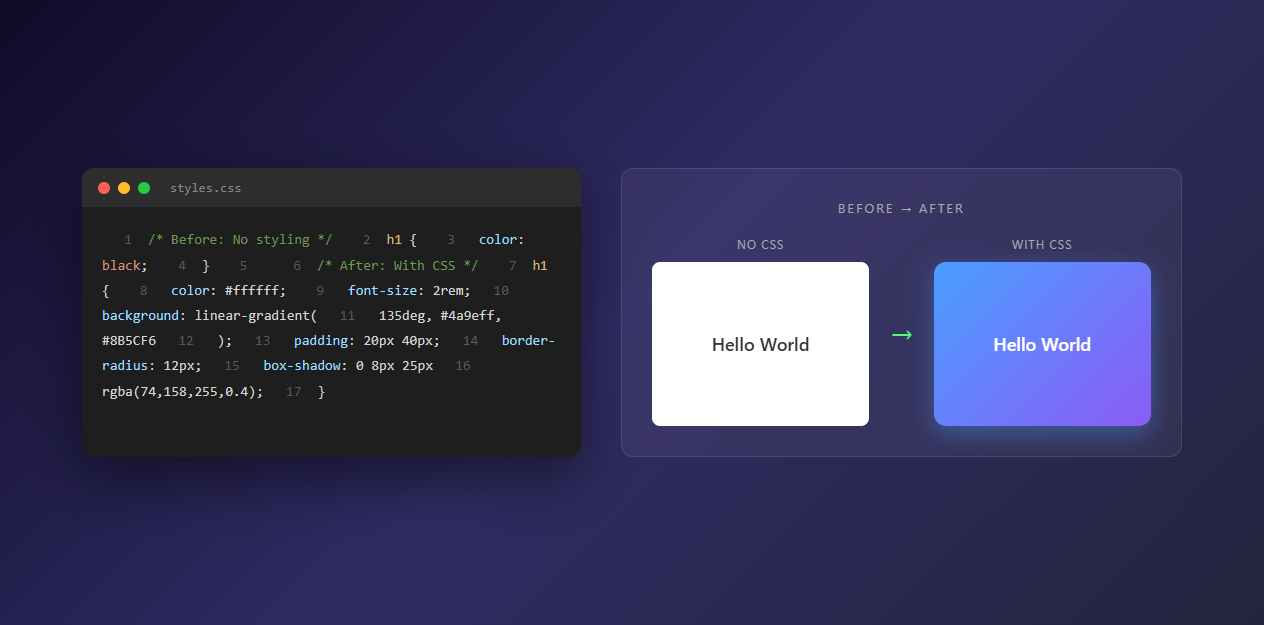
If HTML is the skeleton of a website, then CSS (Cascading Style Sheets) is its skin, makeup, and wardrobe. While HTML provides the structure and content, CSS transforms that raw structure into visually appealing, beautifully designed web pages. Without CSS, every website would look like a plain text document from the 1990s.
What is CSS?
CSS stands for Cascading Style Sheets, and it’s a stylesheet language used to describe the presentation and visual styling of HTML documents. CSS controls how HTML elements are displayed on screen, in print, or in other media formats.
Think of CSS as the artist’s palette for web design. It allows you to:
- Change colors, fonts, and text sizes
- Control spacing, margins, and padding
- Create layouts and positioning
- Add animations and transitions
- Make websites responsive for different screen sizes
- Style elements based on user interactions (hover, click, etc.)
CSS was first proposed by Håkon Wium Lie in 1994 while working at CERN alongside Tim Berners-Lee. The first CSS specification (CSS1) was published in 1996, and CSS has evolved significantly since then. Today, we’re using CSS3, which introduced many powerful features like flexbox, grid, animations, and more.
How CSS Works
CSS works by selecting HTML elements and applying styles to them. The process involves three main components:
1. Selectors
Selectors target specific HTML elements you want to style. They can be:
- Element selectors: Target specific HTML tags (e.g.,
p,h1,div) - Class selectors: Target elements with a specific class (e.g.,
.container,.button) - ID selectors: Target a unique element with a specific ID (e.g.,
#header,#footer) - Attribute selectors: Target elements with specific attributes
- Pseudo-classes: Target elements in specific states (e.g.,
:hover,:focus,:active)
2. Properties
Properties define what aspect of the element you want to change. Common properties include:
color: Text colorbackground-color: Background colorfont-size: Text sizemargin: Space outside an elementpadding: Space inside an elementwidthandheight: Element dimensionsdisplay: How an element is displayed
3. Values
Values specify how you want to change the property. For example:
color: blue;sets text color to bluefont-size: 16px;sets font size to 16 pixelsmargin: 20px;adds 20 pixels of margin
Basic CSS Syntax
Here’s the basic structure of a CSS rule:
selector {
    property: value;
    property: value;
}
Example:
h1 {
    color: blue;
    font-size: 32px;
    margin-bottom: 20px;
}
This CSS rule targets all <h1> elements and:
- Sets the text color to blue
- Sets the font size to 32 pixels
- Adds 20 pixels of margin at the bottom
Ways to Add CSS to HTML
There are three main ways to include CSS in your HTML documents:
1. Inline CSS
Inline CSS is written directly in the HTML element using the style attribute. This method is useful for quick, one-off styles but isn’t recommended for larger projects.
<h1 style="color: blue; font-size: 32px;">Hello World</h1>
Pros:
- Quick and easy for single elements
- Highest specificity (overrides other styles)
Cons:
- Hard to maintain
- Not reusable
- Mixes presentation with structure
- Increases HTML file size
2. Internal CSS (Embedded)
Internal CSS is placed within a <style> tag in the <head> section of your HTML document. This is useful for single-page websites or when you want styles specific to one page.
<!DOCTYPE html>
<html lang="en">
<head>
    <meta charset="UTF-8">
    <title>My Page</title>
    <style>
        h1 {
            color: blue;
            font-size: 32px;
        }
        p {
            color: #333;
            line-height: 1.6;
        }
    </style>
</head>
<body>
    <h1>Hello World</h1>
    <p>This is a paragraph.</p>
</body>
</html>
Pros:
- Keeps styles in one place
- Easy to maintain for single pages
- No additional HTTP requests
Cons:
- Not reusable across multiple pages
- Increases HTML file size
- Still mixes presentation with structure
3. External CSS (Recommended)
External CSS is stored in a separate .css file and linked to your HTML document using the <link> tag. This is the best practice for most projects.
styles.css:
h1 {
    color: blue;
    font-size: 32px;
}

p {
    color: #333;
    line-height: 1.6;
}

.container {
    max-width: 1200px;
    margin: 0 auto;
    padding: 20px;
}
index.html:
<!DOCTYPE html>
<html lang="en">
<head>
    <meta charset="UTF-8">
    <title>My Page</title>
    <link rel="stylesheet" href="styles.css">
</head>
<body>
    <div class="container">
        <h1>Hello World</h1>
        <p>This is a paragraph.</p>
    </div>
</body>
</html>
Pros:
- Separates structure from presentation
- Reusable across multiple pages
- Easier to maintain and update
- Can be cached by browsers
- Better organization and collaboration
Cons:
- Requires an additional HTTP request (minimal impact)
CSS Selectors Explained
Understanding CSS selectors is crucial for styling effectively. Here are the most important types:
Element Selectors
Target all instances of a specific HTML element:
p {
    color: #333;
}

h1 {
    font-size: 2em;
}
Class Selectors
Target elements with a specific class attribute. Classes can be reused multiple times:
.button {
    background-color: blue;
    color: white;
    padding: 10px 20px;
}
<button class="button">Click Me</button>
<button class="button">Submit</button>
ID Selectors
Target a unique element with a specific ID. IDs should be unique on a page:
#header {
    background-color: #333;
    padding: 20px;
}
<header id="header">Welcome</header>
Descendant Selectors
Target elements that are descendants of another element:
nav ul li {
    list-style: none;
}
This targets all <li> elements inside <ul> elements inside <nav> elements.
Child Selectors
Target direct children only (not grandchildren):
nav > ul {
    padding: 0;
}
This targets <ul> elements that are direct children of <nav>.
Pseudo-classes
Target elements in specific states:
a:hover {
    color: red;
}

button:active {
    transform: scale(0.95);
}

input:focus {
    border-color: blue;
}
Attribute Selectors
Target elements based on their attributes:
input[type="text"] {
    border: 1px solid #ccc;
}

a[target="_blank"] {
    color: blue;
}
Common CSS Properties
Here are some of the most commonly used CSS properties:
Typography
font-family: Arial, sans-serif;
font-size: 16px;
font-weight: bold;
font-style: italic;
line-height: 1.6;
text-align: center;
text-decoration: underline;
color: #333;
Box Model
width: 300px;
height: 200px;
margin: 20px;        /* Space outside */
padding: 15px;       /* Space inside */
border: 2px solid black;
box-sizing: border-box;
Layout
display: block;      /* or inline, flex, grid, none */
position: relative;  /* or absolute, fixed, sticky */
top: 10px;
left: 20px;
float: left;         /* or right, none */
clear: both;
Background
background-color: #f0f0f0;
background-image: url('image.jpg');
background-size: cover;
background-position: center;
background-repeat: no-repeat;
Flexbox (Modern Layout)
display: flex;
flex-direction: row;  /* or column */
justify-content: center;
align-items: center;
flex-wrap: wrap;
gap: 20px;
Grid (Advanced Layout)
display: grid;
grid-template-columns: repeat(3, 1fr);
grid-template-rows: auto;
gap: 20px;
The CSS Box Model
Understanding the CSS box model is fundamental to web layout. Every HTML element is treated as a rectangular box with four areas:
- Content: The actual content (text, images, etc.)
- Padding: Space between content and border
- Border: A line around the padding
- Margin: Space outside the border
┌─────────────────────────────────┐
│         MARGIN                  │
│  ┌───────────────────────────┐ │
│  │       BORDER              │ │
│  │  ┌─────────────────────┐  │ │
│  │  │     PADDING         │  │ │
│  │  │  ┌───────────────┐  │  │ │
│  │  │  │   CONTENT     │  │  │ │
│  │  │  └───────────────┘  │  │ │
│  │  └─────────────────────┘  │ │
│  └───────────────────────────┘ │
└─────────────────────────────────┘
Example:
.box {
    width: 300px;
    padding: 20px;
    border: 5px solid black;
    margin: 10px;
}
With box-sizing: content-box (default):
- Total width = 300px (content) + 40px (padding) + 10px (border) = 350px
- Plus 20px margin on each side
With box-sizing: border-box:
- Total width = 300px (includes padding and border)
- Content width = 300px - 40px (padding) - 10px (border) = 250px
CSS Specificity and Cascade
CSS follows specific rules when multiple styles conflict:
Specificity Order (from lowest to highest):
- Element selectors:
p,div,h1 - Class selectors:
.container,.button - ID selectors:
#header,#footer - Inline styles:
style="color: red;" - !important: Overrides everything
Example:
p { color: black; }                    /* Specificity: 1 */
.container p { color: blue; }         /* Specificity: 11 */
#header .container p { color: red; }   /* Specificity: 111 */
The last rule wins because it has the highest specificity.
The Cascade
When specificity is equal, the last rule in the CSS file wins:
p { color: blue; }
p { color: red; }  /* This wins */
Responsive Design with CSS
Responsive design ensures your website looks good on all devices. CSS provides several tools for this:
Media Queries
Media queries allow you to apply styles based on device characteristics:
/* Default styles for mobile */
.container {
    width: 100%;
    padding: 10px;
}

/* Styles for tablets */
@media (min-width: 768px) {
    .container {
        width: 750px;
        padding: 20px;
    }
}

/* Styles for desktops */
@media (min-width: 1024px) {
    .container {
        width: 1200px;
        padding: 30px;
    }
}
Flexible Units
Use relative units instead of fixed pixels:
/* Use percentages for widths */
.container {
    width: 90%;
    max-width: 1200px;
}

/* Use rem/em for font sizes */
body {
    font-size: 16px;
}

h1 {
    font-size: 2rem;  /* 32px */
}

p {
    font-size: 1em;   /* 16px */
}
Flexbox and Grid
Modern CSS layout systems that automatically adapt:
/* Flexbox - automatically wraps items */
.container {
    display: flex;
    flex-wrap: wrap;
    gap: 20px;
}

.item {
    flex: 1 1 300px;  /* Grow, shrink, base width */
}

/* Grid - responsive columns */
.grid {
    display: grid;
    grid-template-columns: repeat(auto-fit, minmax(250px, 1fr));
    gap: 20px;
}
CSS Best Practices
Follow these best practices to write maintainable CSS:
1. Use Meaningful Class Names
/* Good */
.button-primary { }
.navigation-menu { }
.article-header { }

/* Bad */
.btn1 { }
.nav { }
.header { }
2. Organize Your CSS
Group related styles together:
/* Typography */
h1, h2, h3 { }
p { }

/* Layout */
.container { }
.header { }
.footer { }

/* Components */
.button { }
.card { }
3. Use CSS Variables (Custom Properties)
CSS variables make it easy to maintain consistent values:
:root {
    --primary-color: #007bff;
    --secondary-color: #6c757d;
    --font-size-base: 16px;
    --spacing-unit: 8px;
}

.button {
    background-color: var(--primary-color);
    padding: calc(var(--spacing-unit) * 2);
}
4. Avoid Overly Specific Selectors
/* Good */
.button { }

/* Bad */
div.container div.row div.col button.button { }
5. Use Shorthand Properties
/* Good */
margin: 10px 20px;

/* Less efficient */
margin-top: 10px;
margin-right: 20px;
margin-bottom: 10px;
margin-left: 20px;
6. Comment Your Code
/* Header Styles */
.header {
    background-color: #333;
    padding: 20px;
}

/* Navigation Menu */
.nav {
    display: flex;
    gap: 20px;
}
CSS Frameworks and Preprocessors
Popular CSS Frameworks
Bootstrap: Most popular framework with pre-built components
<link href="https://cdn.jsdelivr.net/npm/bootstrap@5.3.0/dist/css/bootstrap.min.css" rel="stylesheet">
Tailwind CSS: Utility-first CSS framework
<div class="flex items-center justify-center p-4 bg-blue-500 text-white">
    Hello Tailwind
</div>
Foundation: Responsive front-end framework Bulma: Modern CSS framework based on Flexbox
CSS Preprocessors
SASS/SCSS: Adds variables, nesting, and functions to CSS
$primary-color: #007bff;

.button {
    background-color: $primary-color;

    &:hover {
        background-color: darken($primary-color, 10%);
    }
}
Less: Similar to SASS, with JavaScript-based compilation Stylus: More flexible syntax, optional semicolons and braces
Common CSS Mistakes to Avoid
1. Using Inline Styles Excessively
<!-- Bad -->
<div style="color: red; font-size: 20px; margin: 10px;">Content</div>

<!-- Good -->
<div class="content">Content</div>
2. Not Using Semantic HTML
<!-- Bad -->
<div class="header">Header</div>

<!-- Good -->
<header>Header</header>
3. Overusing !important
/* Bad */
p { color: blue !important; }

/* Good */
.article p { color: blue; }
4. Not Considering Browser Compatibility
Always check if CSS features are supported in target browsers. Use tools like Can I Use (caniuse.com) to verify compatibility.
5. Not Using Responsive Design
Always design with mobile-first approach and use media queries for larger screens.
CSS Tools and Resources
Online CSS Tools
- CSS Beautifier: Format and beautify your CSS code
- CSS Minifier: Compress CSS for production
- CSS Validator: Validate your CSS code
Learning Resources
- MDN Web Docs: Comprehensive CSS documentation
- CSS-Tricks: Tutorials and guides
- Can I Use: Browser compatibility tables
- CodePen: Experiment with CSS online
Conclusion
CSS is an essential skill for any web developer. It transforms plain HTML into beautiful, engaging websites. While CSS can seem overwhelming at first, mastering the fundamentals—selectors, properties, the box model, and layout techniques—will give you a solid foundation.
Remember:
- Practice regularly by building projects
- Experiment with different properties and values
- Learn modern CSS features like Flexbox and Grid
- Study well-designed websites to understand CSS in action
- Use browser DevTools to inspect and learn from real websites
CSS, combined with HTML and JavaScript, forms the foundation of modern web development. As you continue learning, you’ll discover CSS’s power to create stunning, responsive, and accessible web experiences.
If you’re working with CSS, check out our free CSS tools to help streamline your development workflow. These tools can help you format, minify, and optimize your CSS code efficiently.
Happy styling!